Introduction: The “Locked Out” Panic
Being locked out of your own WordPress website is a rite of passage for every developer, site manager, and business owner. The feeling is visceral: you navigate to your login page, and it’s gone. Or you type your password, and the screen just shakes. Or worse, you’re greeted by a cold, white screen of death.
In 2026, the WordPress ecosystem has evolved. Security is tighter, caching is more aggressive, and the complexity of the average stack has increased. Access issues are rarely just “I forgot my password” anymore. They are often complex collisions between security plugins, server-side caching, database corruption, and deprecated PHP versions.
This guide is not a list of basic tips. It is a comprehensive, technical manual for regaining access to your property. We will bypass the front door, pick the lock, and if necessary, take the door off its hinges using database access and command-line tools.
Part 1: The Anatomy of a WordPress Login
Before we troubleshoot, we must understand how WordPress handles authentication. When you visit wp-login.php, WordPress fires a sequence of events:
- Cookie Check: It checks your browser for valid authentication cookies.
- Nonce Verification: It ensures the login request is genuine and not a CSRF attack.
- Database Lookup: It queries the
wp_userstable for the username. - Password Hashing: It salts and hashes your input and compares it to the
user_passstring in the database. - Capability Check: It queries
wp_usermetato verify you have theadministrator(or equivalent) role. - Redirect: It generates a new session cookie and sends you to
wp-admin/.
An error at ANY of these stages results in a lockout.
Finding the Invisible Door: Where is my Login URL?
By default, WordPress listens on specific standard routes. You should know these by heart:
your-site.com/wp-login.php(The physical file handling logic).your-site.com/wp-admin/(A directory that triggers a redirect to login if not authenticated).your-site.com/login(A canonical redirect often handled by themes).your-site.com/admin(Legacy redirect).
Scenario 1: The “404 Not Found”
If these URLs return a 404 error, the file isn’t missing—it’s hidden. A plugin or custom code may have changed the login slug to something custom like /portal, /entry, or /my-secret-login.
The Fix: If you inherited a site and don’t know the custom slug, you cannot guess it. You must disable the plugin enforcing the rule.
- FTP/SFTP Access: Connect to your server using FileZilla or your hosting file manager.
- Navigate: Go to
/wp-content/plugins/. - Identify: Look for folders named
wps-hide-login,ithemes-security-pro, orrename-wp-login. - Neutralize: Rename the folder. For example, change
wps-hide-loginto__wps-hide-login_DISABLED. - Test: WordPress will immediately stop loading that plugin. The custom routing rule will vanish, and the default
/wp-login.phpwill work again.
Scenario 2: The Infinite Redirect Loop
You enter your credentials, the page refreshes, and you are back at the login screen. No error message. Just a loop. This is usually caused by a cookie mismatch or SSL conflict.
The Fix:
- Clear Browser Cookies: This solves 50% of cases.
- Check
wp-config.php: Ensure your site URLs are hardcoded correctly.
Note: Ensure you use// Add these to wp-config.php define('WP_HOME', 'https://your-domain.com'); define('WP_SITEURL', 'https://your-domain.com');httpsif you have an SSL certificate. Usinghttphere when the server forces HTTPS will cause a loop.
Part 2: “I Forgot My Password” (And The Email Is Dead)
The “Lost your password?” link depends on two fragile things:
- Your server’s ability to send emails (SMTP).
- You having access to the email address on file.
If the site was built by a previous developer, the admin email might be dev@agency-that-closed.com. You will never get that link. Here are the Developer Methods to override authentication.
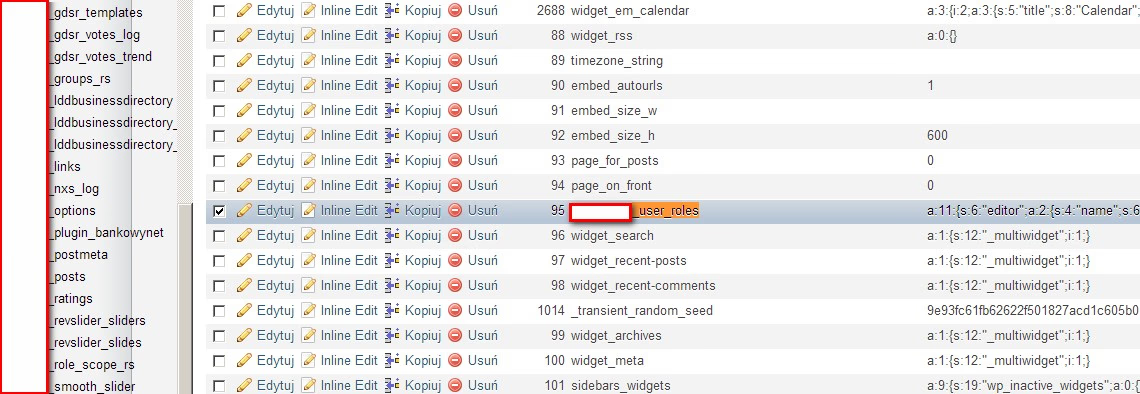
Method A: The Database Surgery (phpMyAdmin)
This is the universal method. It works on every host (Kinsta, WP Engine, SiteGround, OVH).
- Access the Database: Log in to your hosting panel and open phpMyAdmin.
- Locate the Table: Find
wp_users. (Note: The prefixwp_might be different, e.g.,wp_823_users). - Find the User: Locate your username (
user_login) or email. - Edit the Row: Click “Edit”.
- The Password Field: Look for
user_pass. You will see a long string of random characters (e.g.,$P$B55D6Ljf...). This is a hashed password. You cannot just type “password123” here because WordPress won’t recognize it. - The Magic Trick:
- In the Function dropdown menu next to
user_pass, select MD5. - In the Value field, delete the hash and type your new password in plain text (e.g.,
NewStrongPass2026!). - Click Go (Save).
- What happens? MySQL will apply the MD5 algorithm to your string before saving it. WordPress is smart enough to recognize older MD5 hashes and will automatically upgrade it to a newer, stronger hash (like bcrypt) the next time you log in.
- In the Function dropdown menu next to
Method B: The WP-CLI Surgical Strike (Preferred)
If you have SSH access, using the graphical interface is a waste of time. WP-CLI is faster, safer, and leaves an audit trail in your shell history.
- Login:
ssh user@ip-address - Navigate:
cd /var/www/html(or your site path). - List Users: You need to know exactly who the admins are.
Output:wp user list+----+------------+--------------+--------------------------+ | ID | user_login | display_name | user_email | +----+------------+--------------+--------------------------+ | 1 | admin | administrator| admin@legacy-site.com | | 4 | mariusz | Mariusz | mariusz@wppoland.com | +----+------------+--------------+--------------------------+ - Change Password:
wp user update 1 --user_pass="CorrectHorseBatteryStaple2026" - Alternative: Create a New Admin:
Sometimes the existing admin account is corrupted or you don’t want to touch it. Create a backdoor admin for yourself.
This grants you entry without alerting the existing users.wp user create recovery_admin admin@example.com --role=administrator --user_pass="MySecretEntryKey"
Method C: The functions.php Emergency Switch
Warning: Use this only as a last resort. It involves modifying code on a live server.
- FTP into
/wp-content/themes/your-active-theme/. - Download
functions.php. - Add this line immediately after
<?php:
(Replacewp_set_password('EmergencyReset2026!', 1);1with the User ID you want to reset). - Upload the file.
- Refresh the login page. The password is now reset.
- CRITICAL STEP: Delete that line from
functions.phpimmediately.- Why? Every time purely loads a page on your site, WordPress will attempt to reset the password again. This creates a loop where you are logged out instantly after logging in because the password “changed” again behind the scenes.
Part 3: Advanced Lockout Scenarios
You have the password. You found the URL. But you still can’t get in. Now we enter the realm of advanced debugging.
1. The “You do not have sufficient permissions” Error
You log in successfully, but WordPress shows you a blank dashboard or says “Sorry, you are not allowed to access this page.”
Diagnosis: Your user exists, but your Capabilities are corrupted. This often happens after a bad database migration (search-and-replace gone wrong on serialized data).
The Fix (Database):
- Go to
wp_usermetatable in phpMyAdmin. - Search for
user_idmatching your ID (e.g., 1). - Look for the
meta_keynamedwp_capabilities(orwp_xyz_capabilities). - The
meta_valueshould look like this serialized array:a: '1:{s:13:"administrator";b:1;}' - If it looks completely different, empty, or corrupted, replace it with the string above. This manually forces the Database to recognize you as an Administrator.
2. The 2FA Lockout
You enabled Two-Factor Authentication (Google Authenticator), but you lost your phone. Now you are effectively locked out by your own security.
The Fix: You cannot “guess” the 2FA code. You must disable the plugin enforcing it.
- FTP to
/wp-content/plugins/. - Find the 2FA plugin (e.g.,
google-authenticator,two-factor). - Rename the folder to
_disabled_google-authenticator. - Log in. WordPress will complain that the plugin is missing, but it will let you in without the code.
- Re-enable the folder name, go to plugins, and re-configure.
3. The White Screen of Death (WSOD) on Login
You submit the form, and the screen goes blank. This is a PHP Fatal Error occurring during the authentication handshake.
Diagnosis: To see the ghost, you must give it a form. We need logs.
- Open
wp-config.php. - Look for
define('WP_DEBUG', false);. - Replace it with this “Verbose Logging” block:
// Enable Debugging define( 'WP_DEBUG', true ); // Save logs to /wp-content/debug.log define( 'WP_DEBUG_LOG', true ); // Do NOT show errors on the screen (security risk) define( 'WP_DEBUG_DISPLAY', false ); @ini_set( 'display_errors', 0 ); - Trigger the error again (try to login).
- Open
/wp-content/debug.log. - You will see a line like:
PHP Fatal error: Uncaught Error: Call to undefined function... in /.../wp-content/plugins/bad-plugin/index.php:45 - Now you know exactly which plugin is the traitor. Delete it via FTP.
Part 4: Nuclear Options (When All Else Fails)
If you are dealing with a hacked site, or a completely broken installation, surgical fixes might not work. Here are the nuclear options.
1. Hard Reset of WordPress Core
Sometimes, the core files themselves (wp-login.php, wp-admin files) are corrupted or infected with malware.
- Download a fresh copy of WordPress from
wordpress.org. - Unzip it on your computer.
- Delete the
wp-contentfolder from this fresh copy (you don’t want to overwrite your own content!). - Delete the
wp-config-sample.phpfile. - Upload EVERYTHING else to your server, overwriting the existing files.
- This replaces all logic files with fresh, clean code.
- It does not touch your database, your images, or your theme.
2. Force Logout Everyone (Salt Reset)
If you suspect a session hijacking or want to ensure nobody else is logged in while you work:
- Open https://api.wordpress.org/secret-key/1.1/salt/
- Copy the generated keys.
- Open
wp-config.php. - Replace the existing Authentication Unique Keys and Salts with the new ones.
- Effect: Every valid login cookie on the planet for your site is instantly invalidated. Everyone (including you) is logged out.
Part 5: Proactive Prevention (The Moat)
Recovering access is stressful. The goal should be to never lose it again. Here is your checklist for hardening your login door.
The Principle of Least Privilege
Never give separate accounts “Administrator” access unless they are technically capable of managing the server.
- Editor: Can write and publish posts.
- Shop Manager: Can manage WooCommerce orders.
- Administrator: Can break the site. If you have a client, give them Editor access. Only give Administrator access if they sign a waiver.
Hardware Keys (The Future)
In 2026, passwords are considered insecure. The industry has moved to Passkeys (FIDO2 authentication).
- Use a hardware key like YubiKey or Titan Key.
- Install a plugin capable of WebAuthn.
- Google and Apple now support Passkeys natively. This means you can log in to WordPress using your Face ID or Touch ID. It is unphishable.
Limiting Login Attempts
Brute Force attacks are robots trying thousands of passwords per second.
- Install Limit Login Attempts Reloaded.
- Set it to lock out an IP after 3 failed attempts for 24 hours.
- This simple step reduces server load by 90%.
Session Management
If you log in from a public café or a friend’s computer, you might forget to log out.
- Go to Users -> Profile.
- Scroll down to “Session Management”.
- Click Log Out Everywhere Else. This is a core feature often overlooked.
Frequently Asked Questions (FAQ)
Q: Can I just delete the .maintenance file?
A: Yes! If your update failed and your site says “Briefly unavailable for scheduled maintenance”, access your site via FTP and delete the .maintenance file in the root directory. This will instantly bring your site back online.
Q: What if I don’t have FTP access?
Q: Does resetting the password in the database break encryption?
Q: Why does my login page keep refreshing?
Q: Is “admin” really a bad username?
Summary Checklist
Regaining access to WordPress is a logical process of elimination methods.
- Is the URL correct? (Check for hidden login plugins via FTP).
- Is the Password correct? (Reset via WP-CLI or DB MD5 hash).
- Is the User Role correct? (Check
wp_capabilitiesserialization). - Is code blocking you? (Rename plugins folder, enable
WP_DEBUG). - Is the Core corrupted? (Re-upload fresh wp-admin/includes).
Once you are back in, do not just sigh in relief. Secure the breach. Install a passkey solution, set up a redundant admin account, and verify your backup schedule. Access recovery is a battle you should only have to fight once.
Read Next: Complete WordPress Security Hardening Guide (2026 Edition)